
Give your goals a direction.
Set target dates, add milestones, plan a budget, and track progress across your bigger plans.
PLAN · FOCUS · PROGRESS · ACHIEVE
Bring your goals, tasks, reminders, and expenses together. Arc2Liv helps you turn what matters into a plan you can follow, one day at a time.
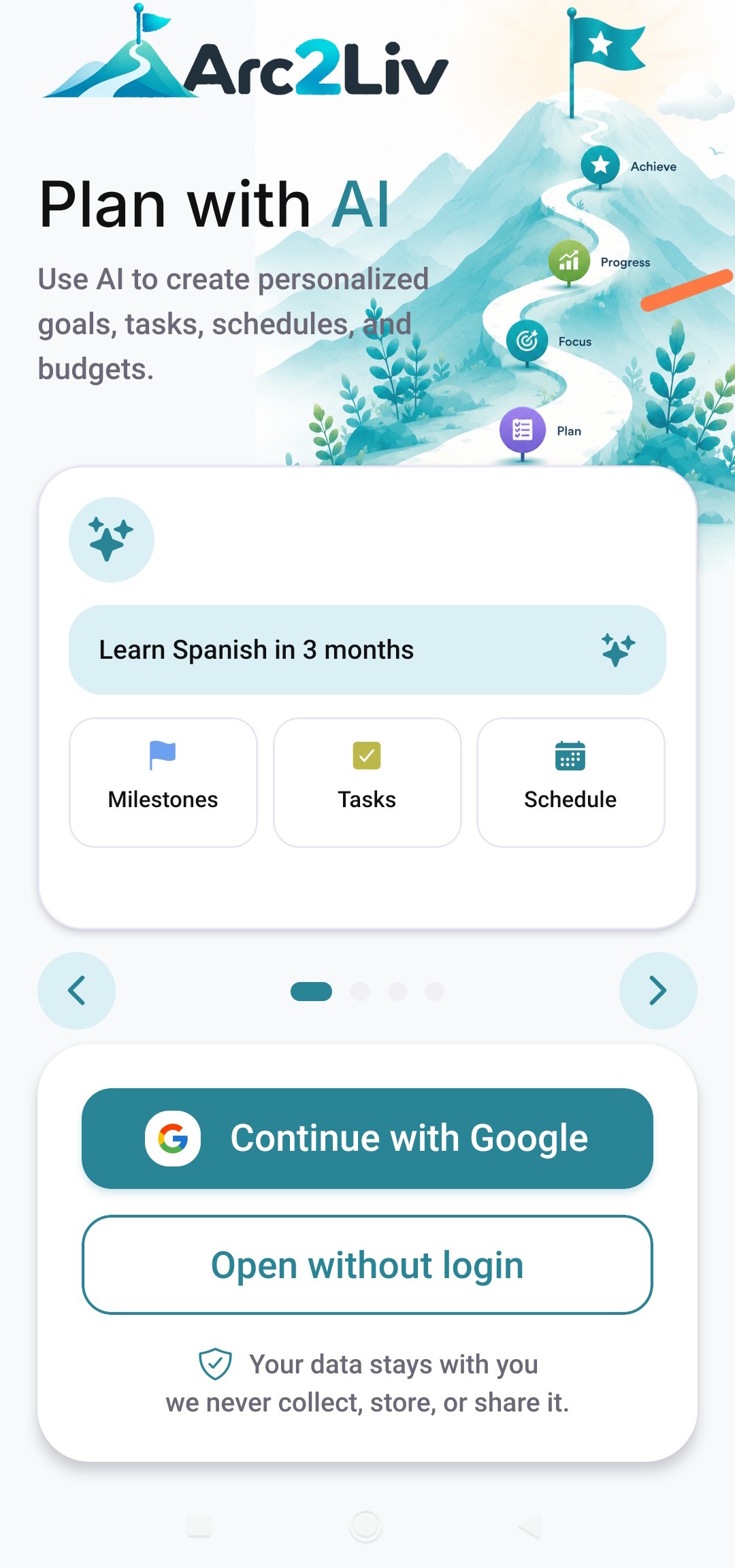
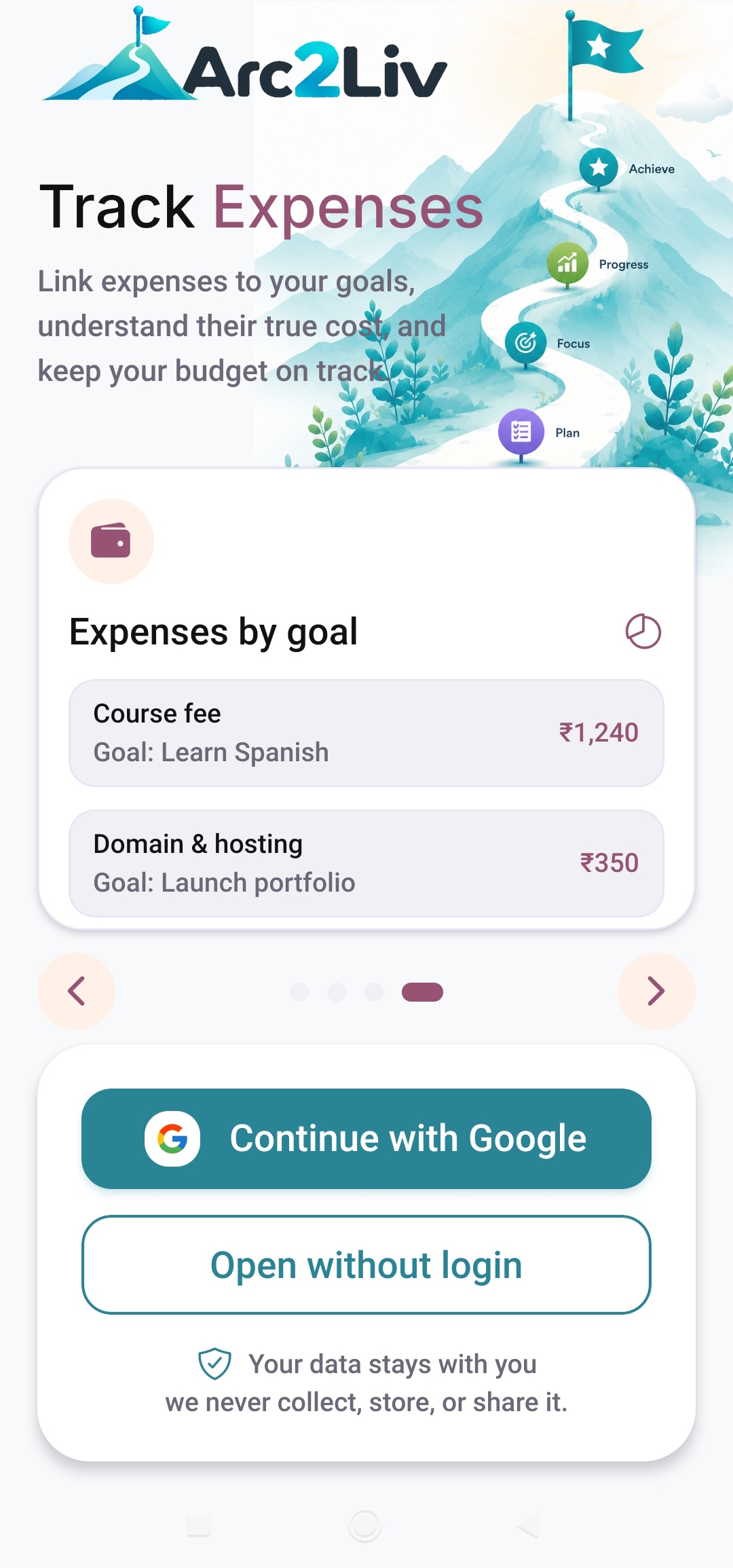
Start without login. Connect Google when you want Drive backup.
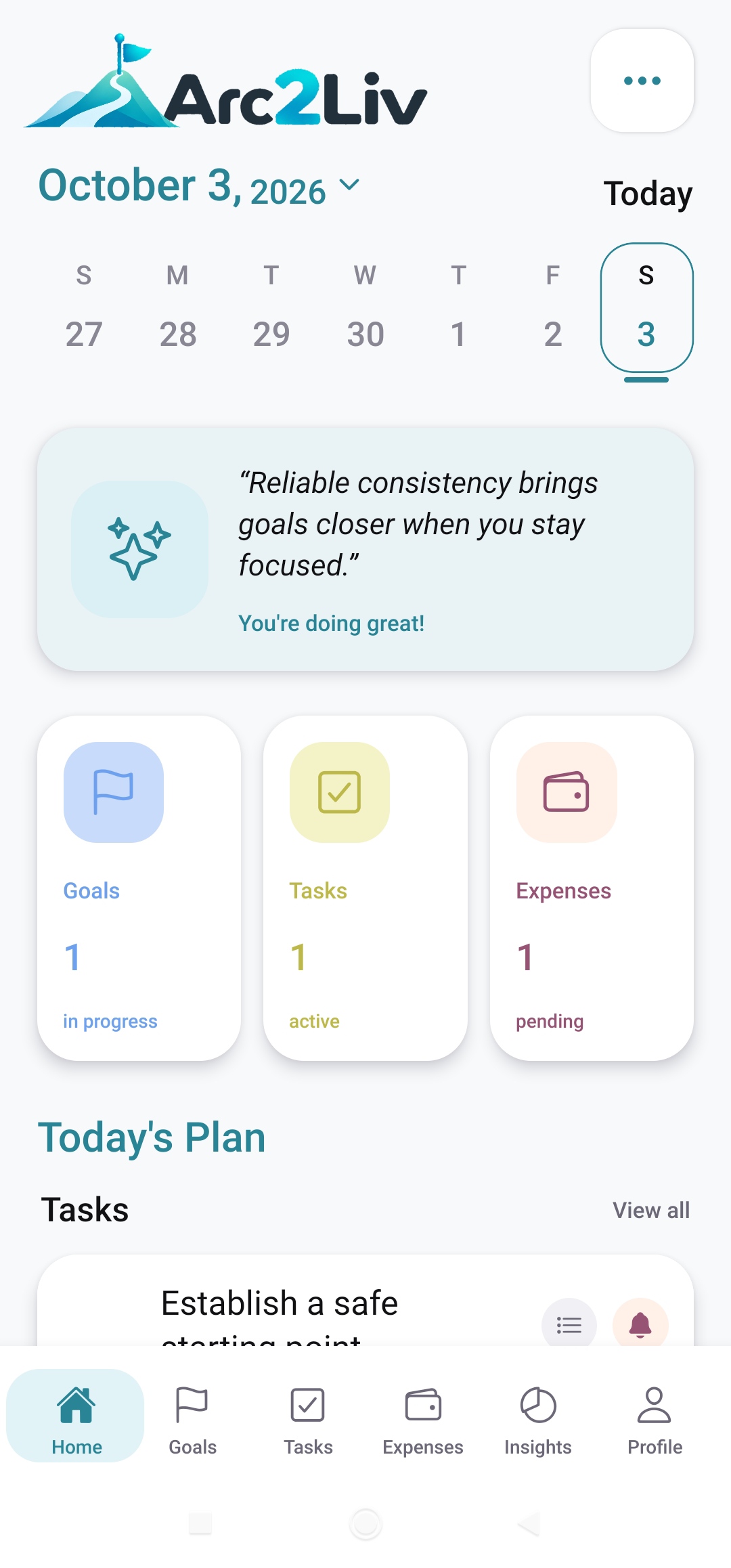
A CONNECTED PLAN
Keep the big picture and the little details moving together.
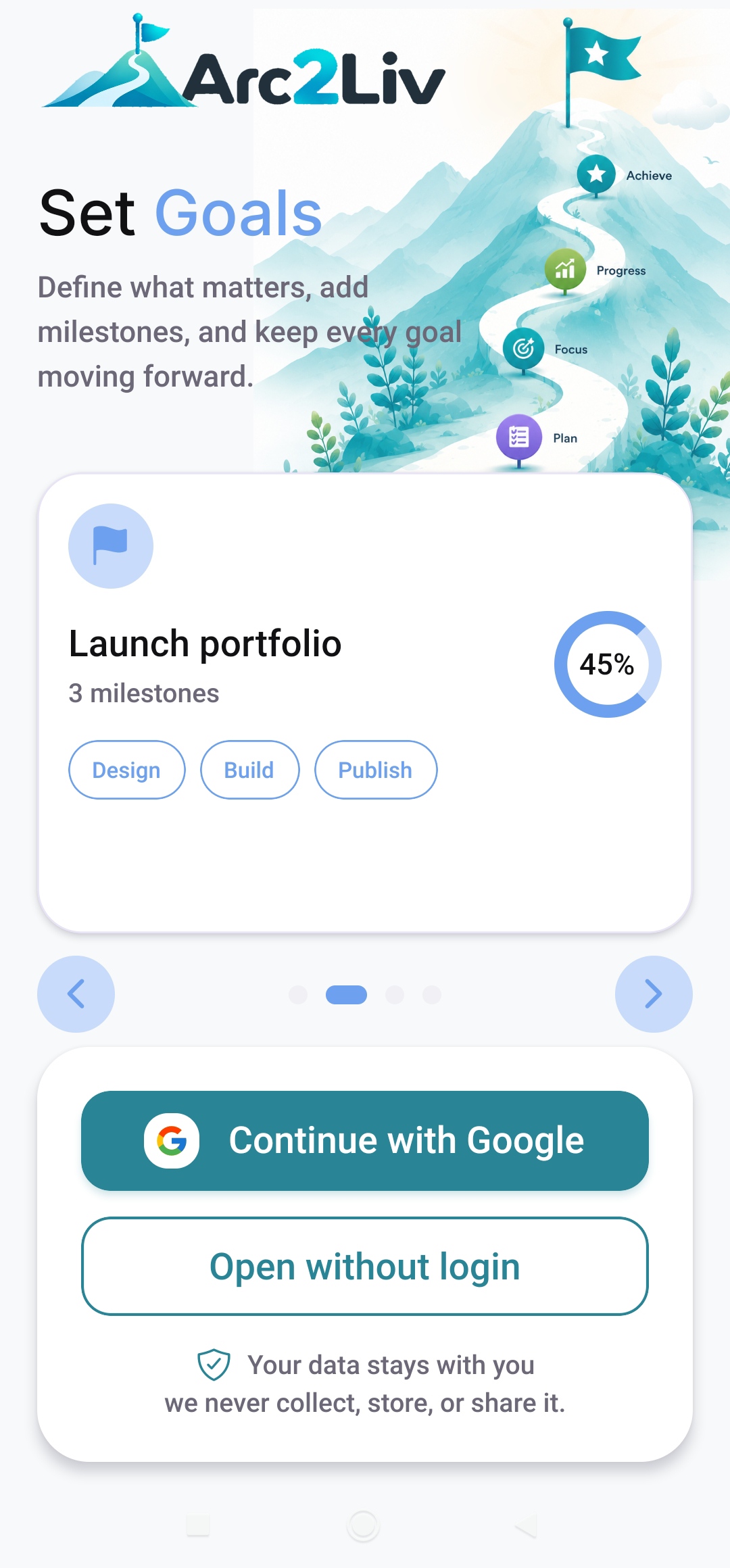
Set target dates, add milestones, plan a budget, and track progress across your bigger plans.
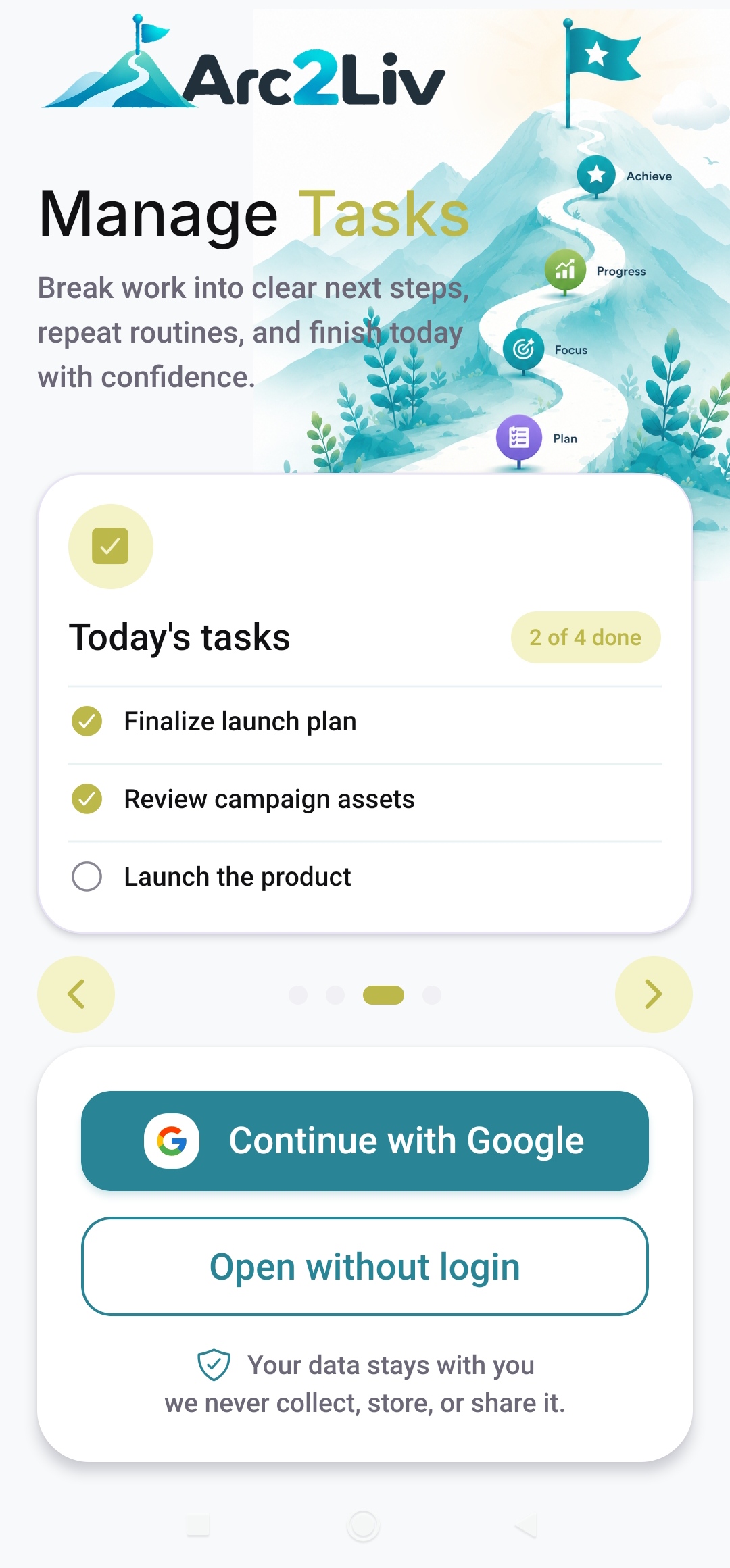
Break work into action steps. Plan dates and times, repeat routines, and set reminders to keep your day on track.
Link expenses to goals and tasks, organize categories, and track pending and paid payments.
Review goal completion, remaining tasks, time to your target, and expense summaries in one view.
A LITTLE HELP GETTING STARTED
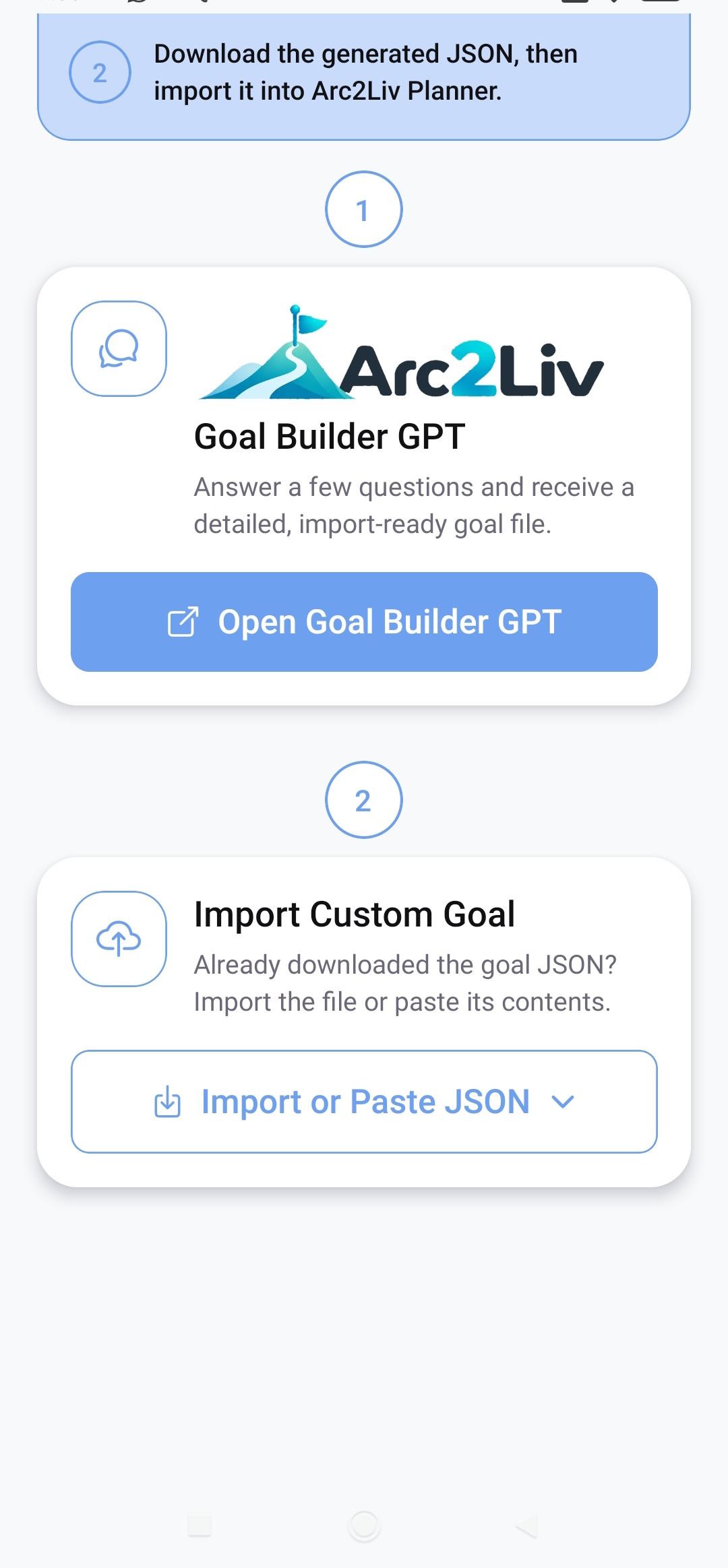
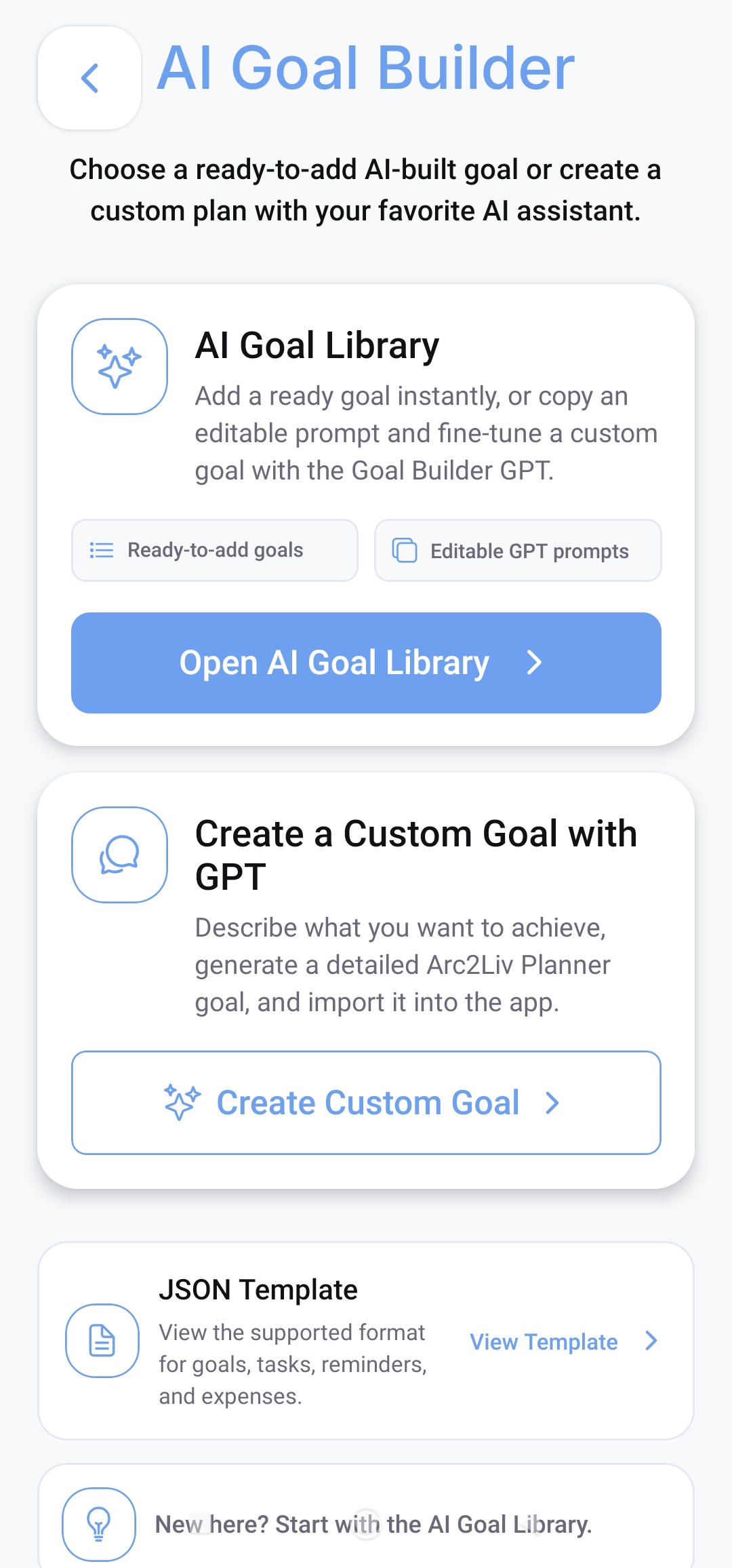
Choose a ready-to-add plan from the AI Goal Library, or create a custom plan with the Arc2Liv Goal Builder GPT.
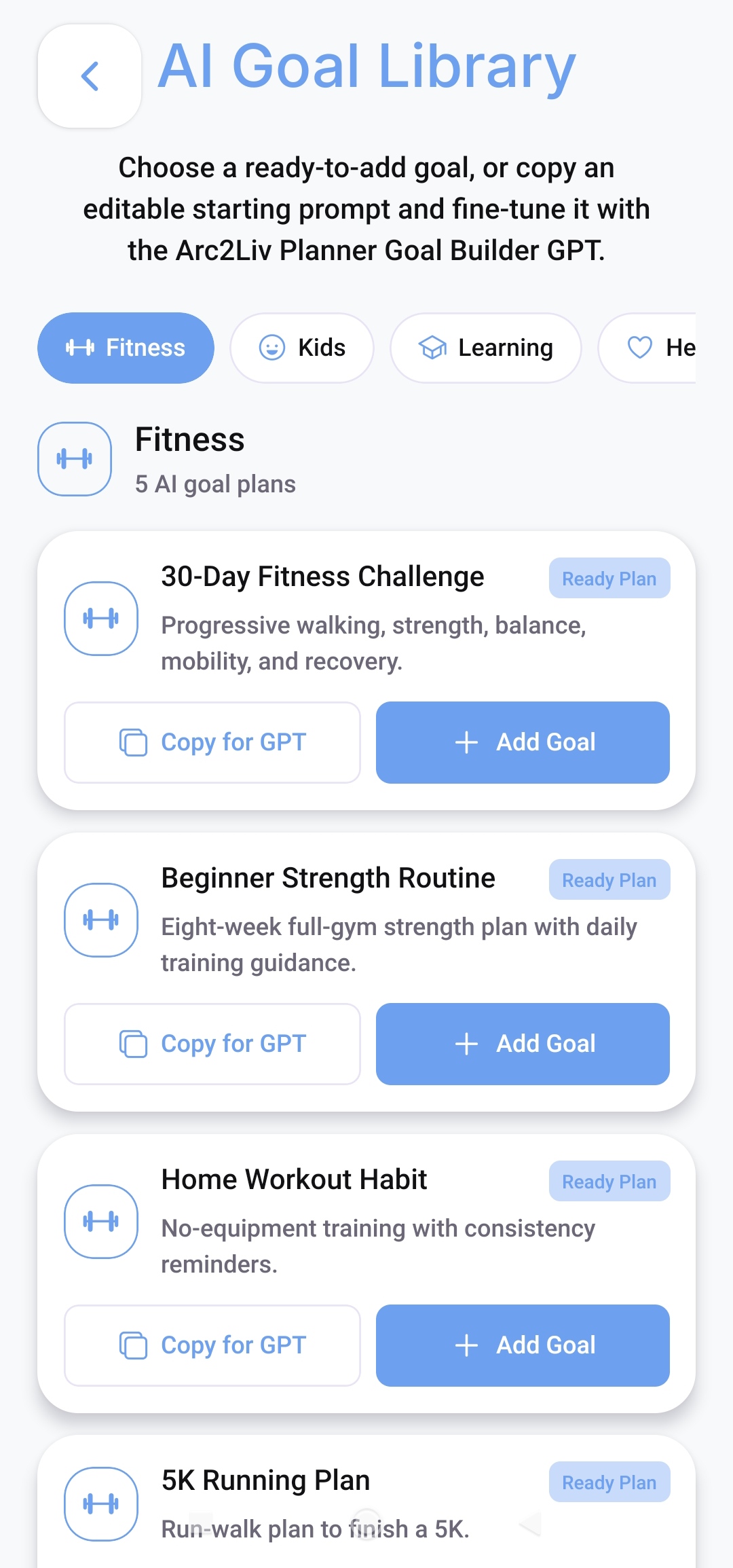
A PLAN BUILT AROUND YOU
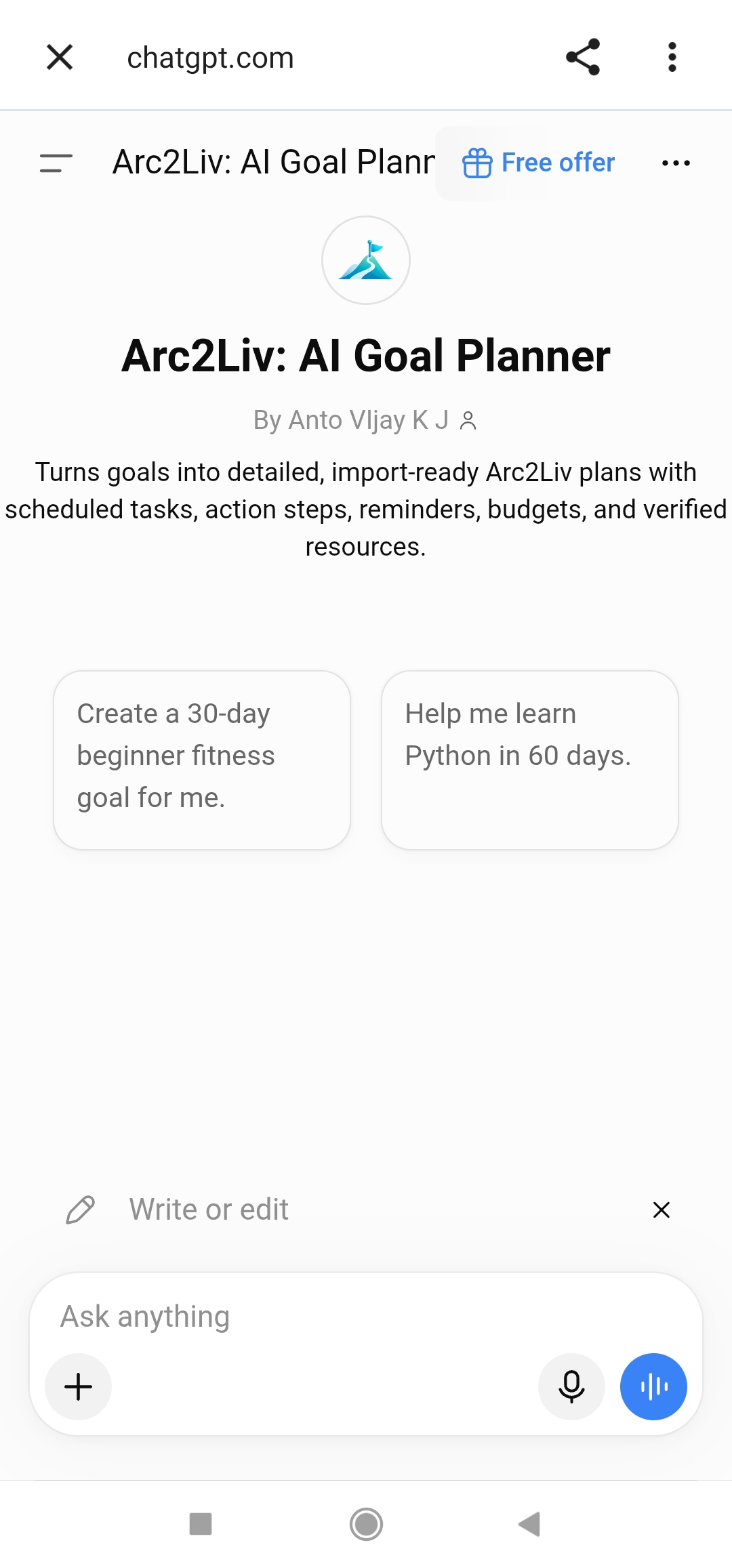
Have a goal that needs a personal plan? Open the Arc2Liv Goal Builder GPT, describe what you want to achieve, and turn the result into a goal you can follow in the app.
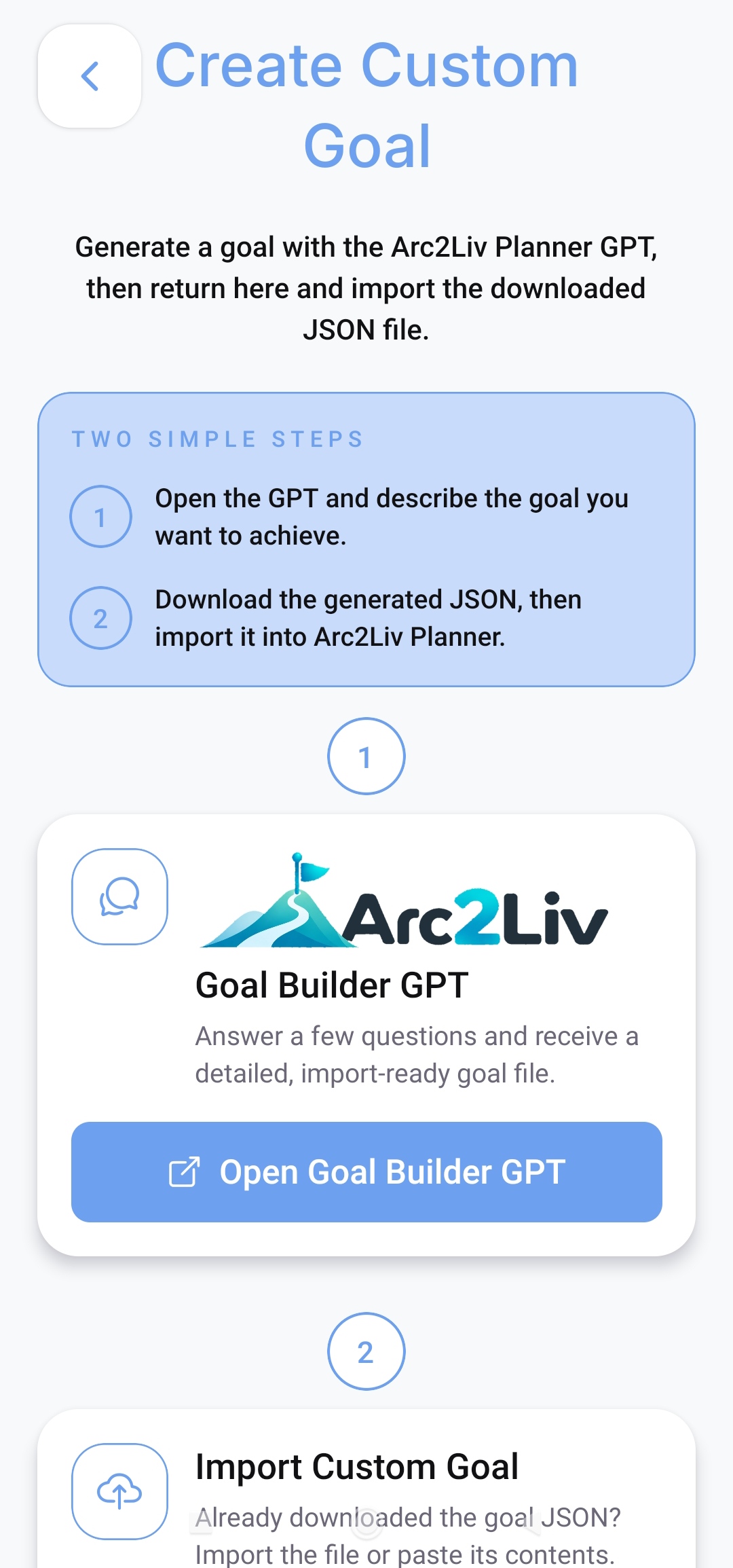
Give every ambition a clear destination.
Create a goal yourself or start with an AI plan, then keep your target and progress in view.
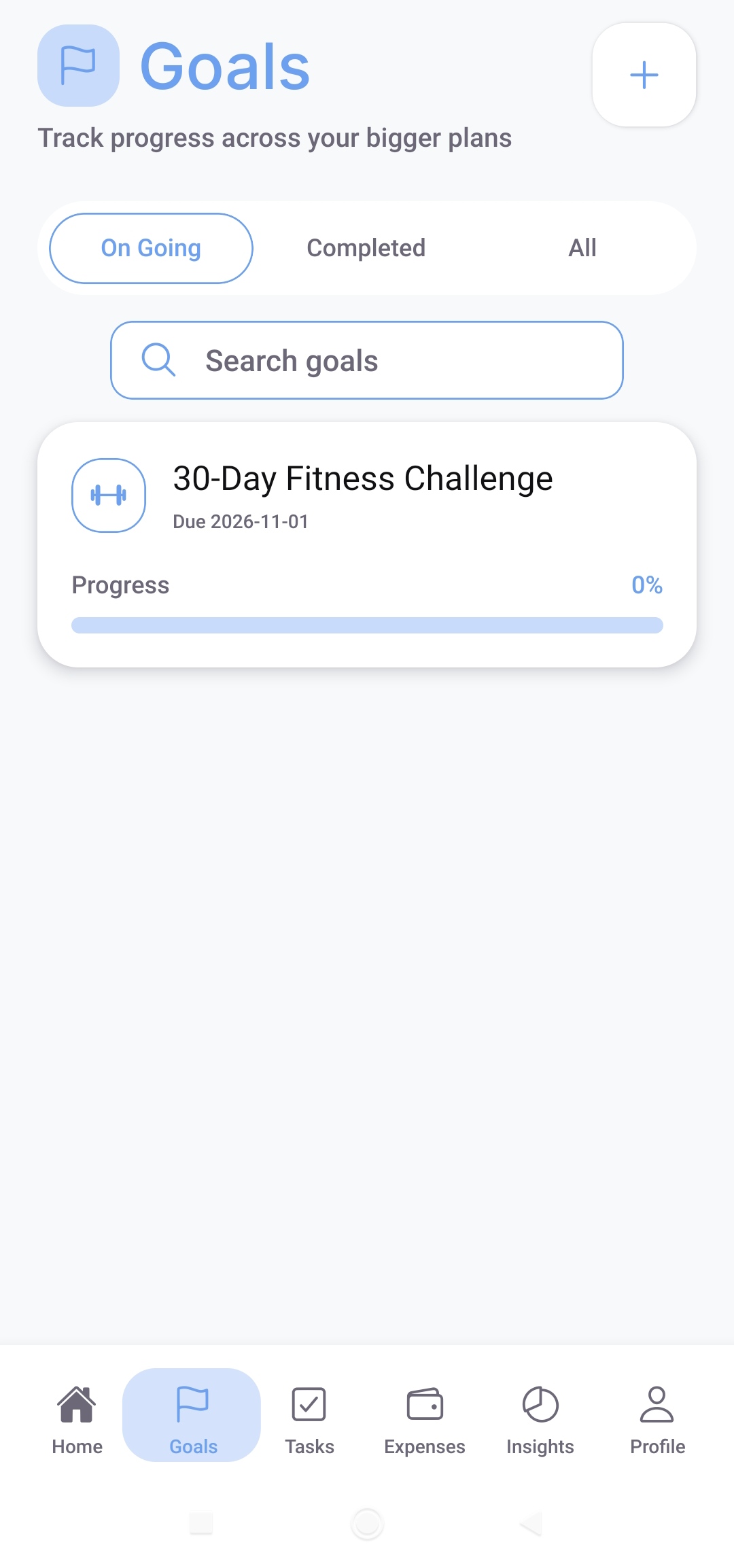
See your ongoing goals and their progress at a glance. Switch between ongoing, completed, and all goals, or search for the plan you want to work on.
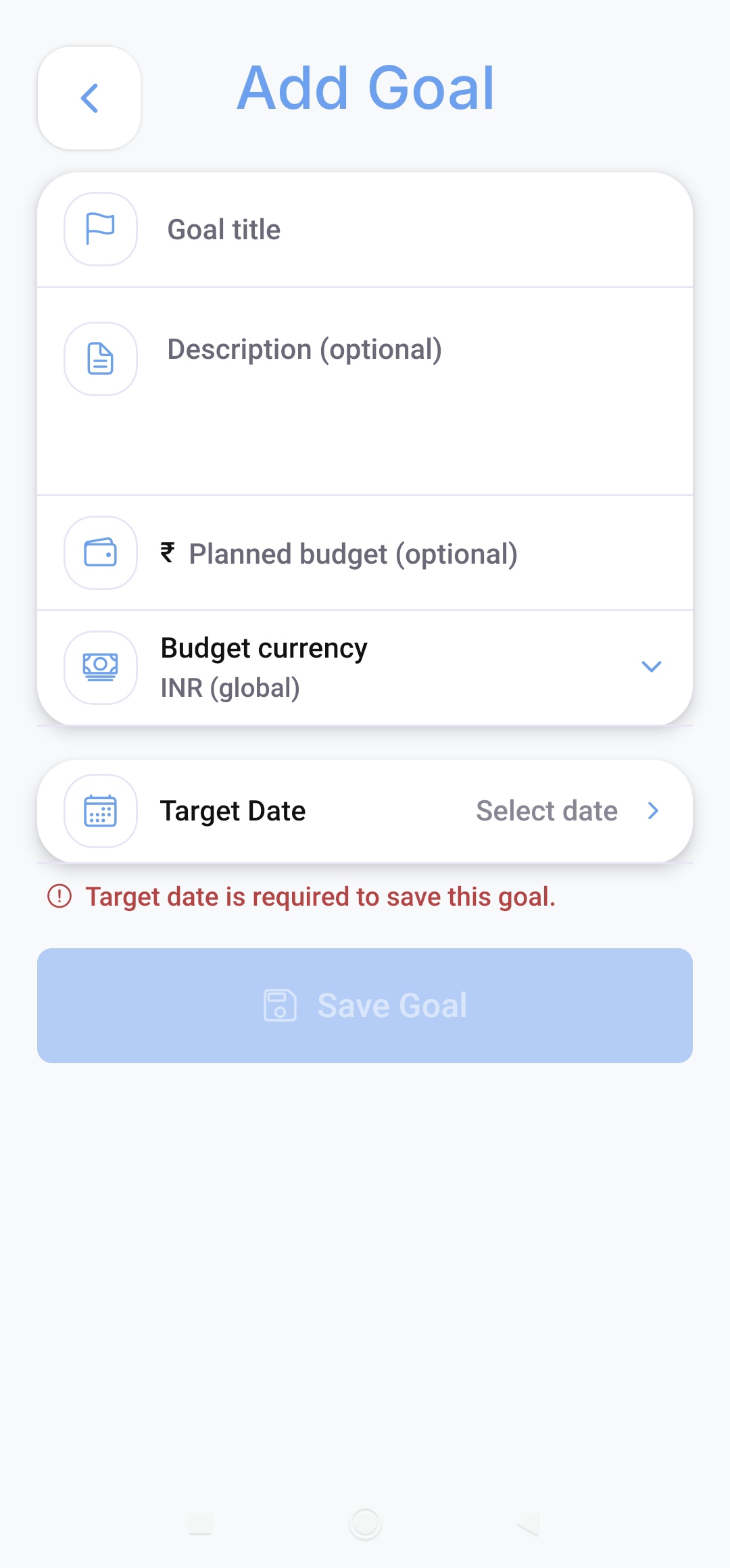
Give your goal a title, add an optional description and planned budget, choose a currency, and set the target date required to save your goal.
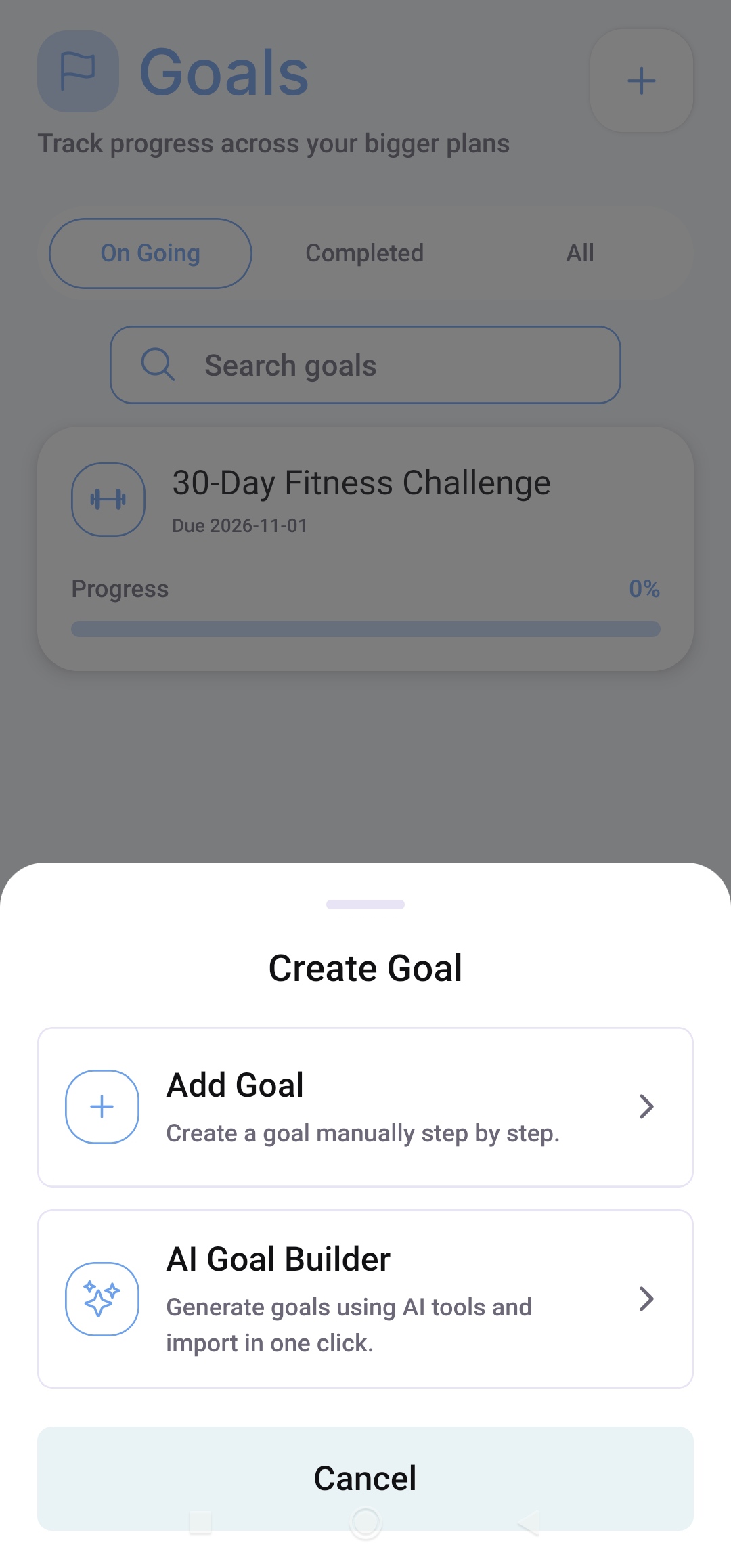
Use Add Goal to build a plan manually, or choose AI Goal Builder to start with a ready plan or a custom AI-assisted goal.
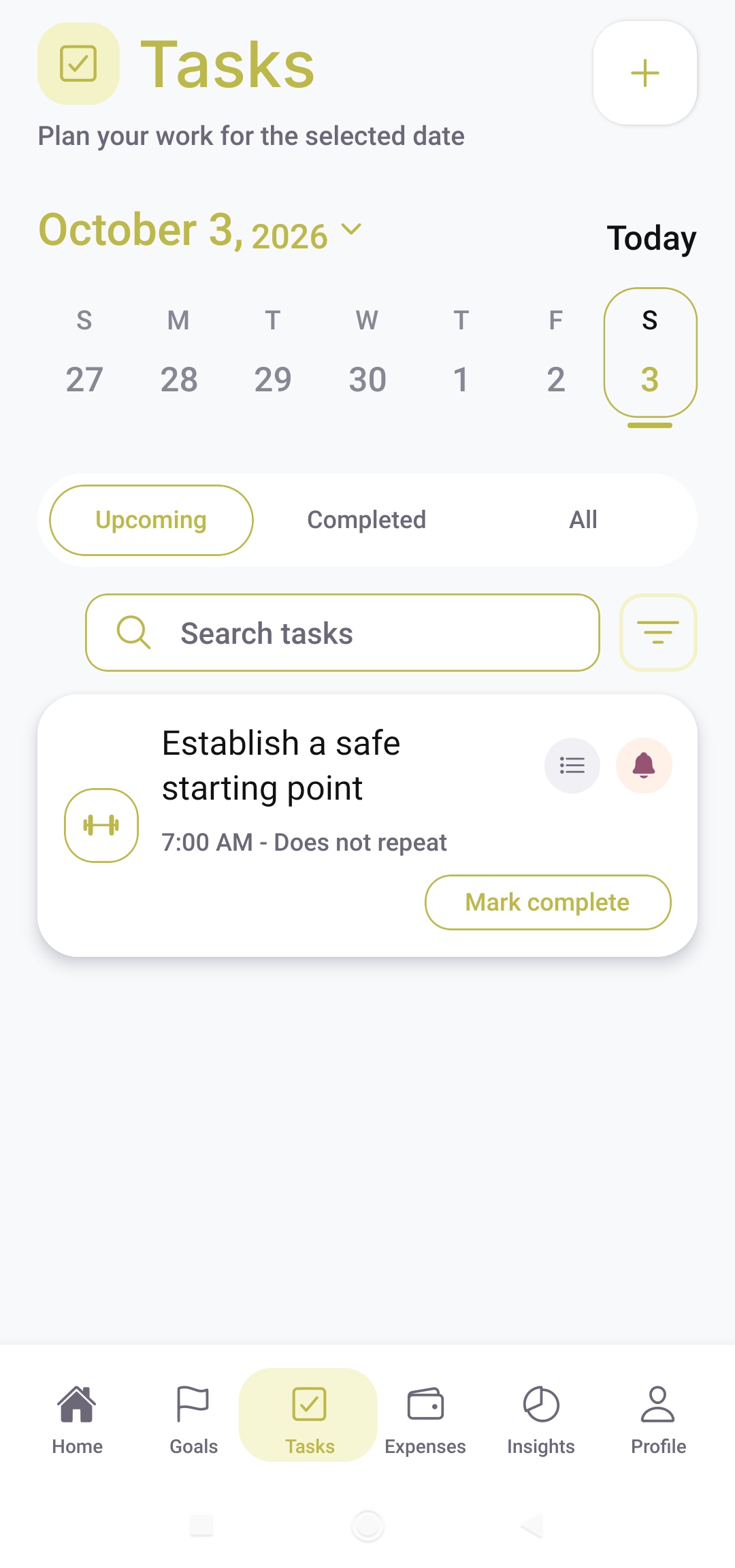
Turn your plan into daily action.
Organize the work behind your goals with scheduled tasks, reminders, and smaller action steps.
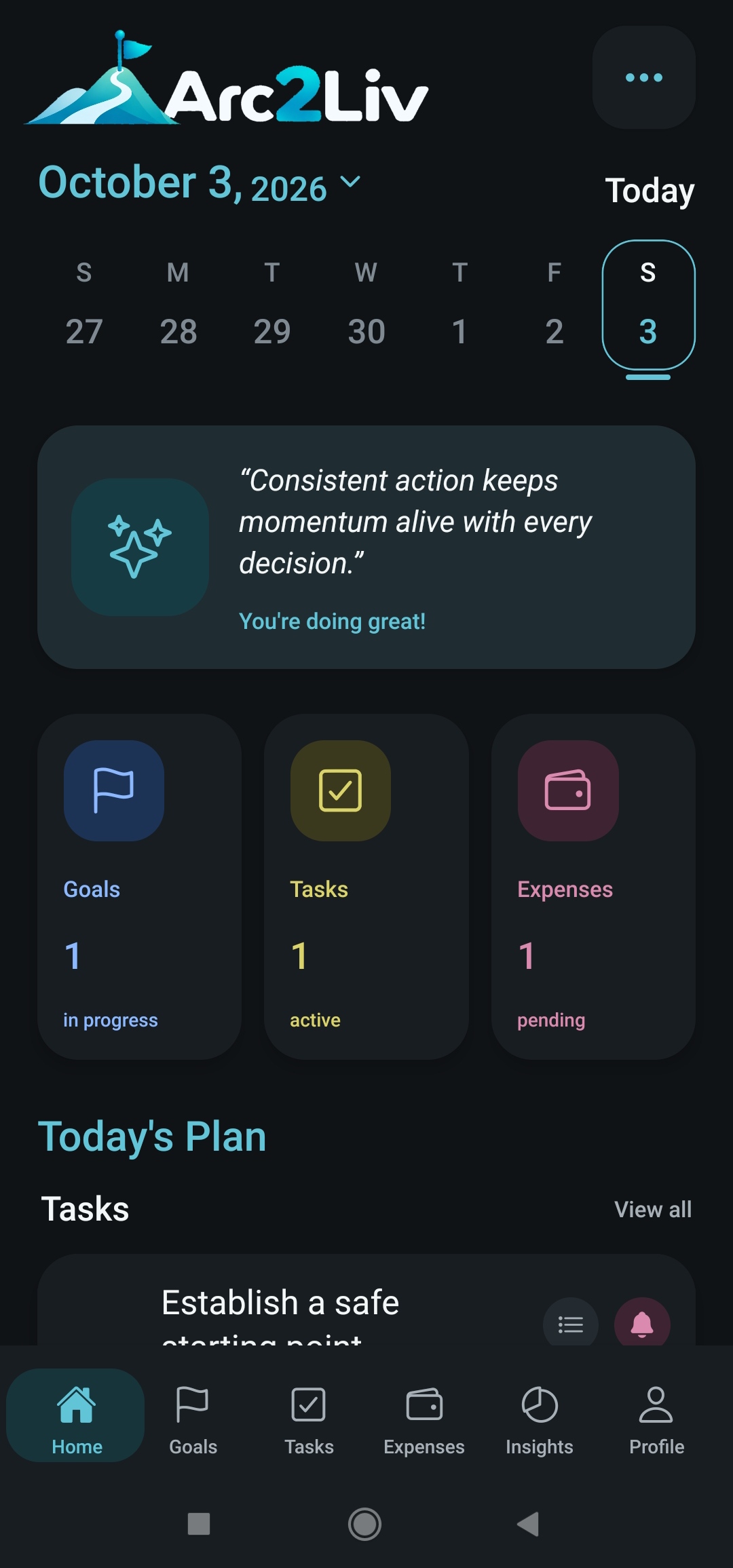
Choose a date from the weekly calendar to review your work. Search or filter tasks, switch between upcoming and completed items, and mark finished tasks complete.
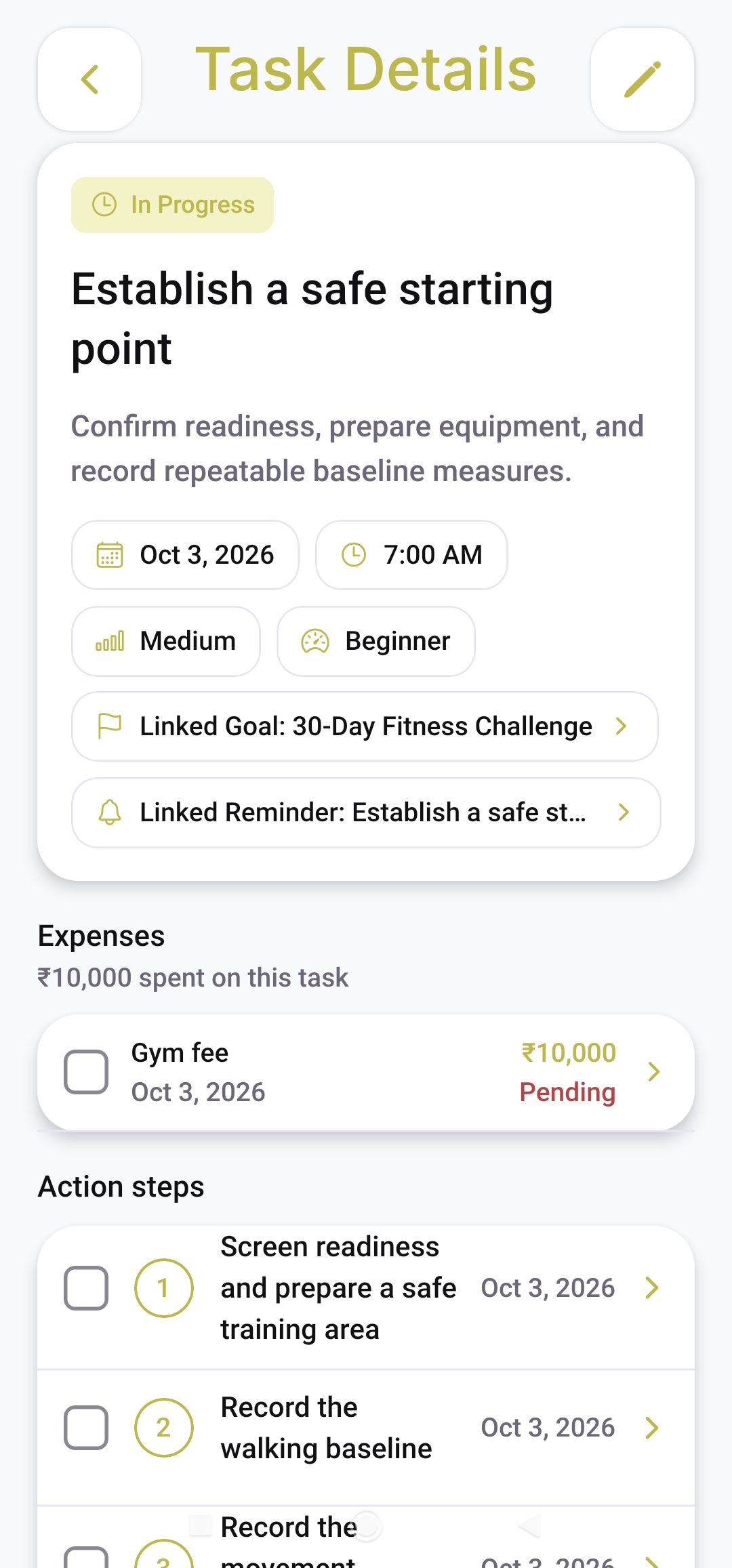
See the task objective, date, time, priority, and difficulty together. Open its linked goal or reminder, review related expenses, and follow the numbered action steps.
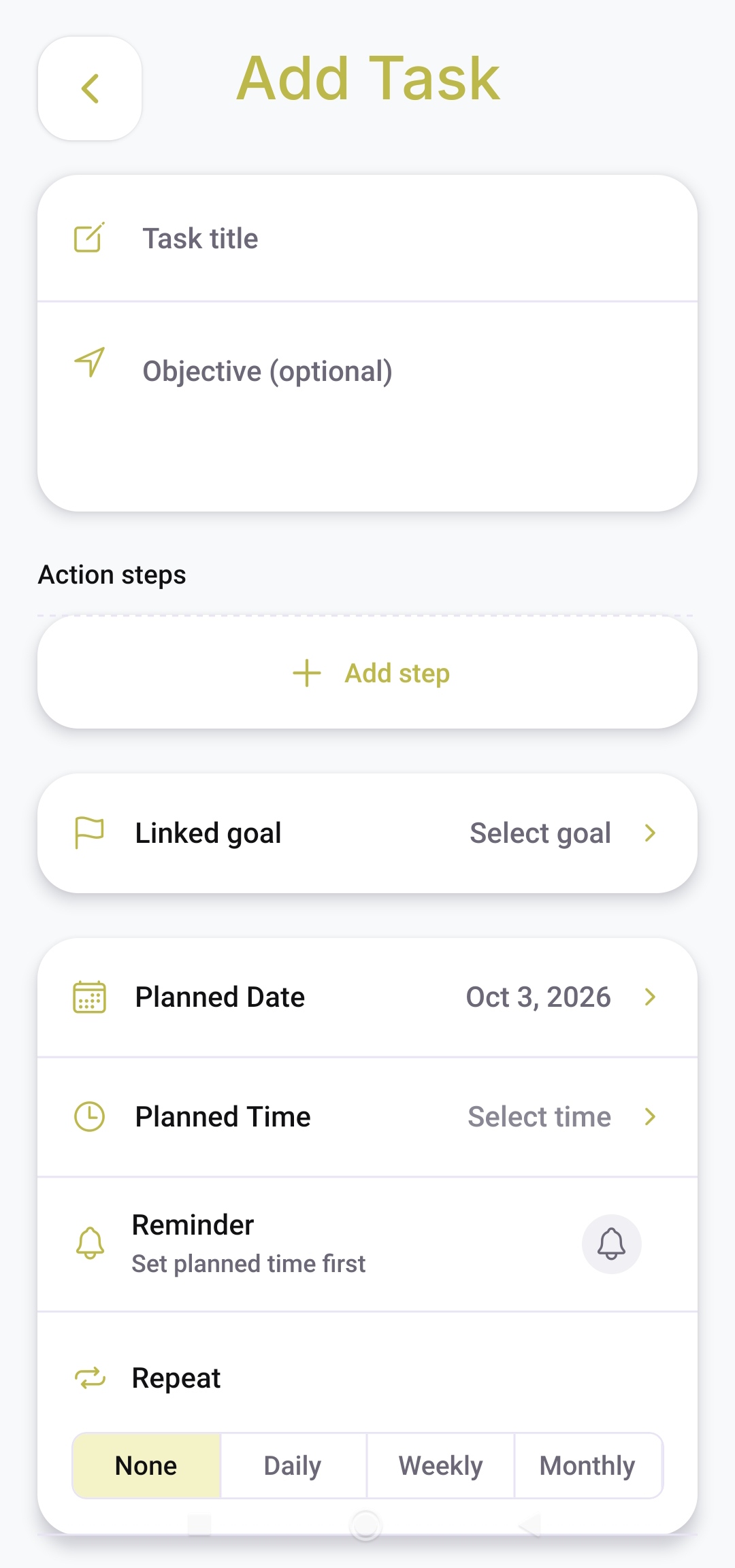
Write a task title and optional objective, add action steps, and link the task to a goal. Choose a planned date and time, set a reminder, and select a daily, weekly, or monthly repeat.
Understand what your goals cost.
Keep payment details connected to the goals and tasks they support.
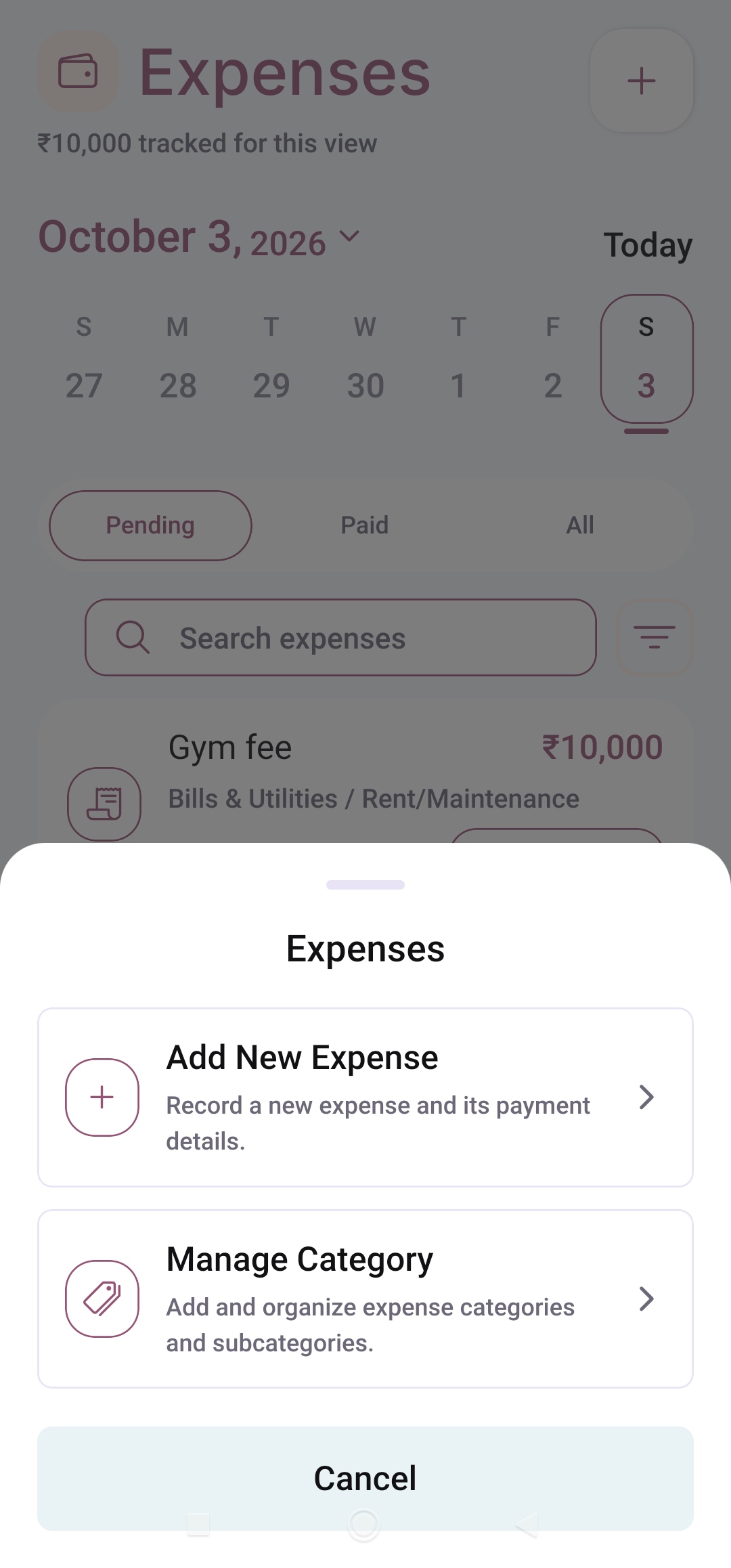
Review expenses for the selected date and switch between pending, paid, and all payments. Use the expense menu to record a new expense or organize categories and subcategories.
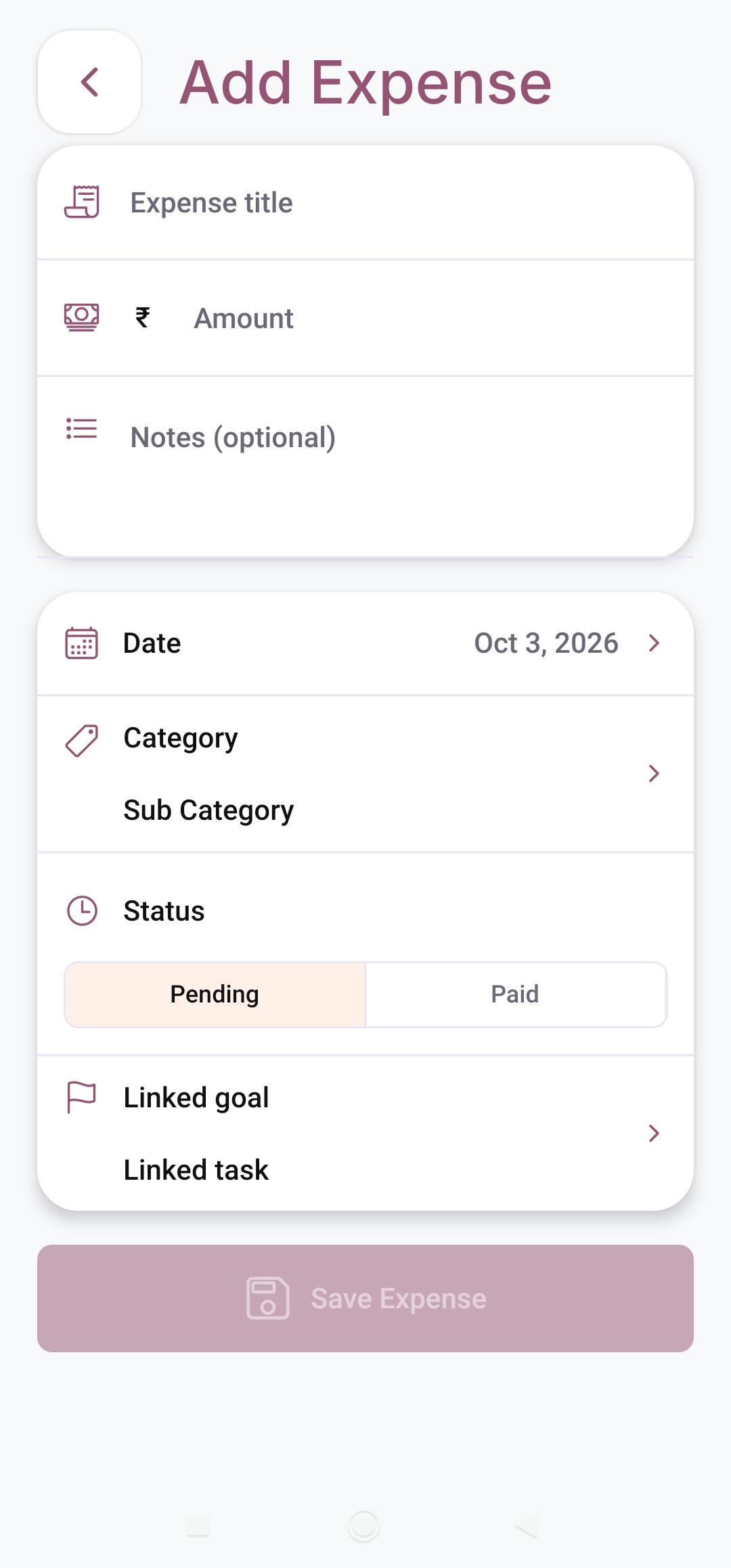
Record the title, amount, date, and optional notes. Choose a category and subcategory, set the payment status, and link the expense to a goal or task.
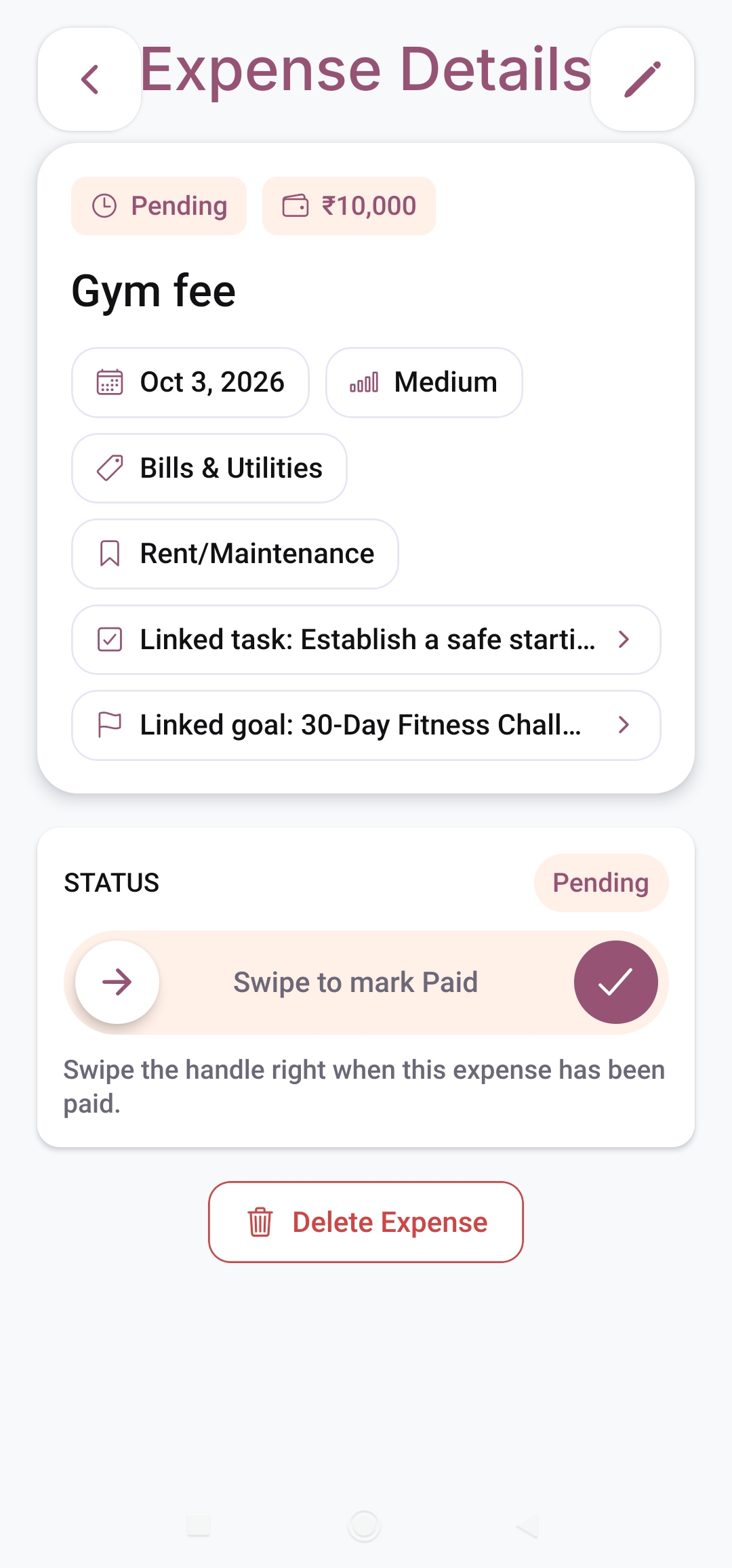
Review the amount, payment status, priority, category, and connected goal or task. When a payment is complete, swipe the status handle to mark it paid.
See how your plan is progressing.
Review your goal momentum and spending together so you can decide what needs attention.
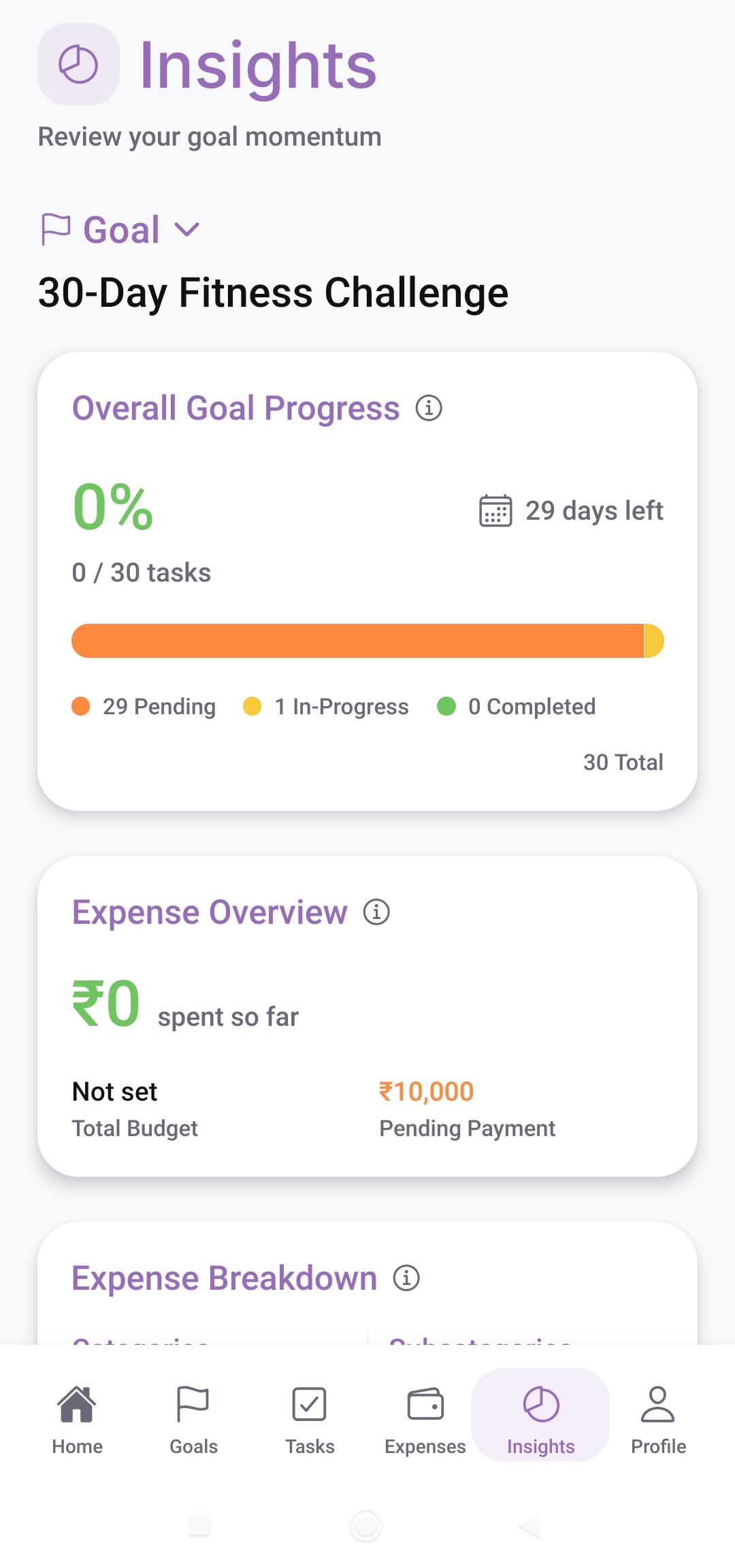
Select a goal to see overall completion, completed tasks, and days remaining. The status bar separates pending, in-progress, and completed work. The expense overview shows spending so far, the planned budget, and pending payments, with expense breakdowns below.
Make Arc2Liv work your way.
Manage your account, backups, reminders, appearance, and data from one place.
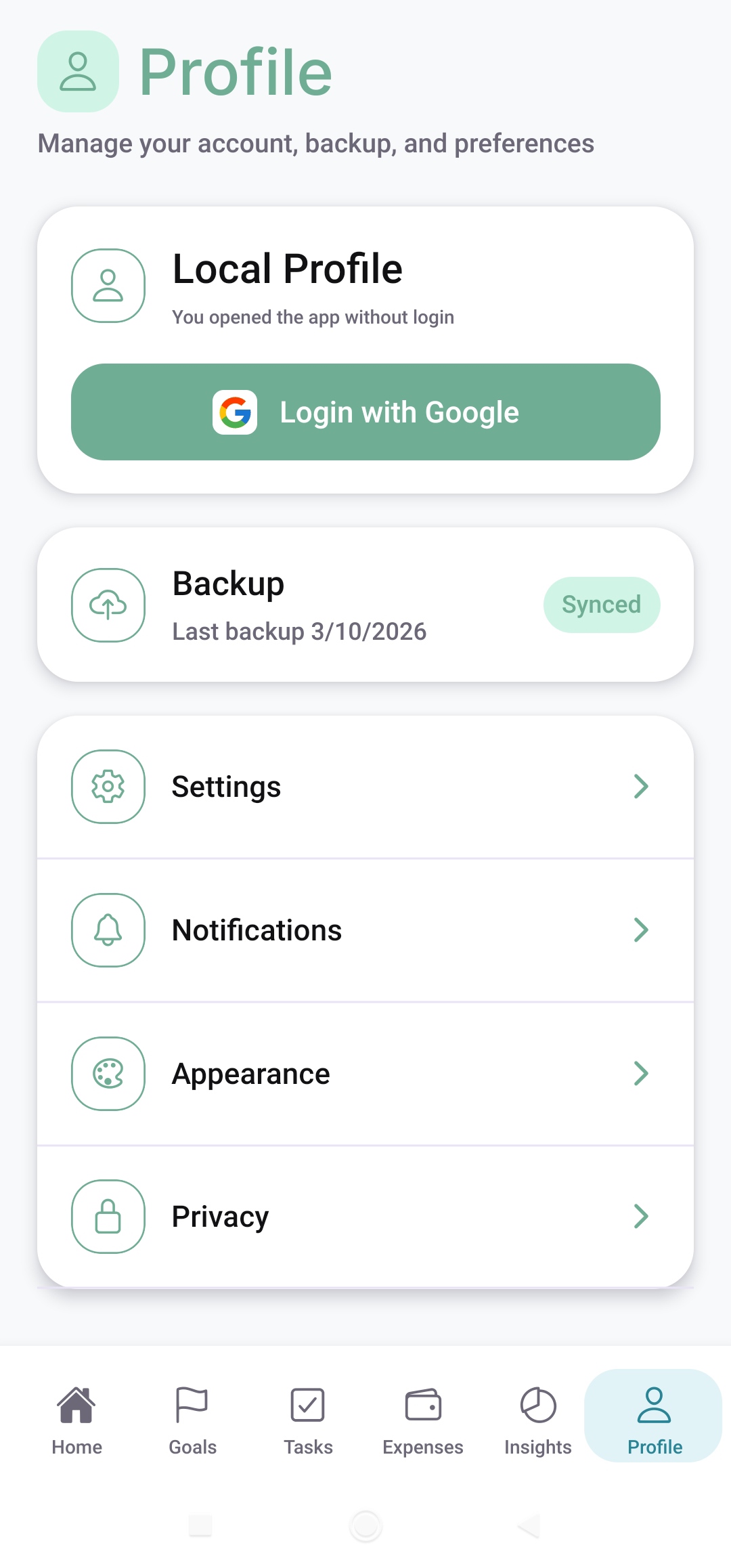
Start with a local profile when you open without login, or sign in with Google. View backup status and open Settings, Notifications, Appearance, or Privacy.
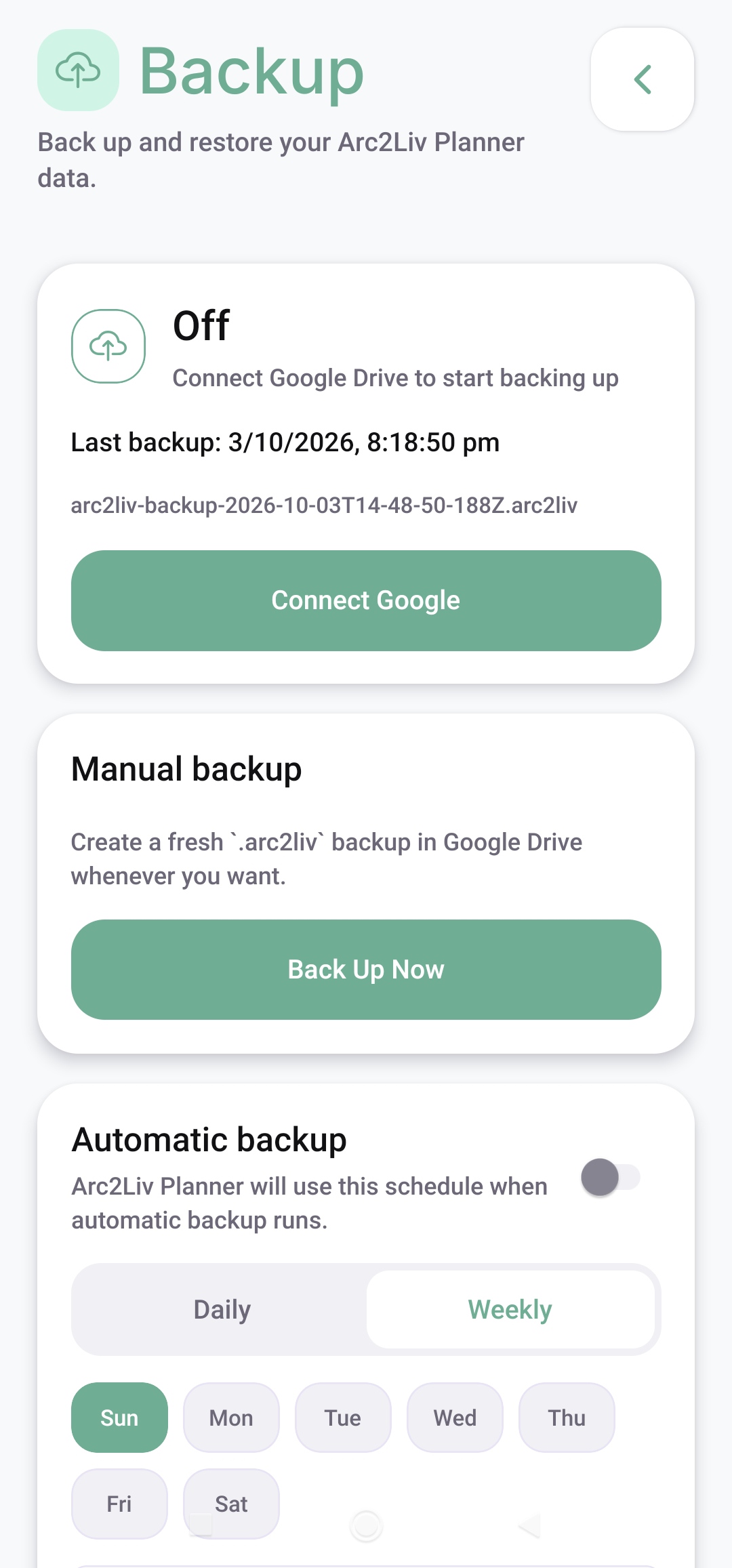
Connect Google Drive to back up and restore your planner data. View your last backup, create a manual backup, and configure a daily or weekly automatic backup schedule.
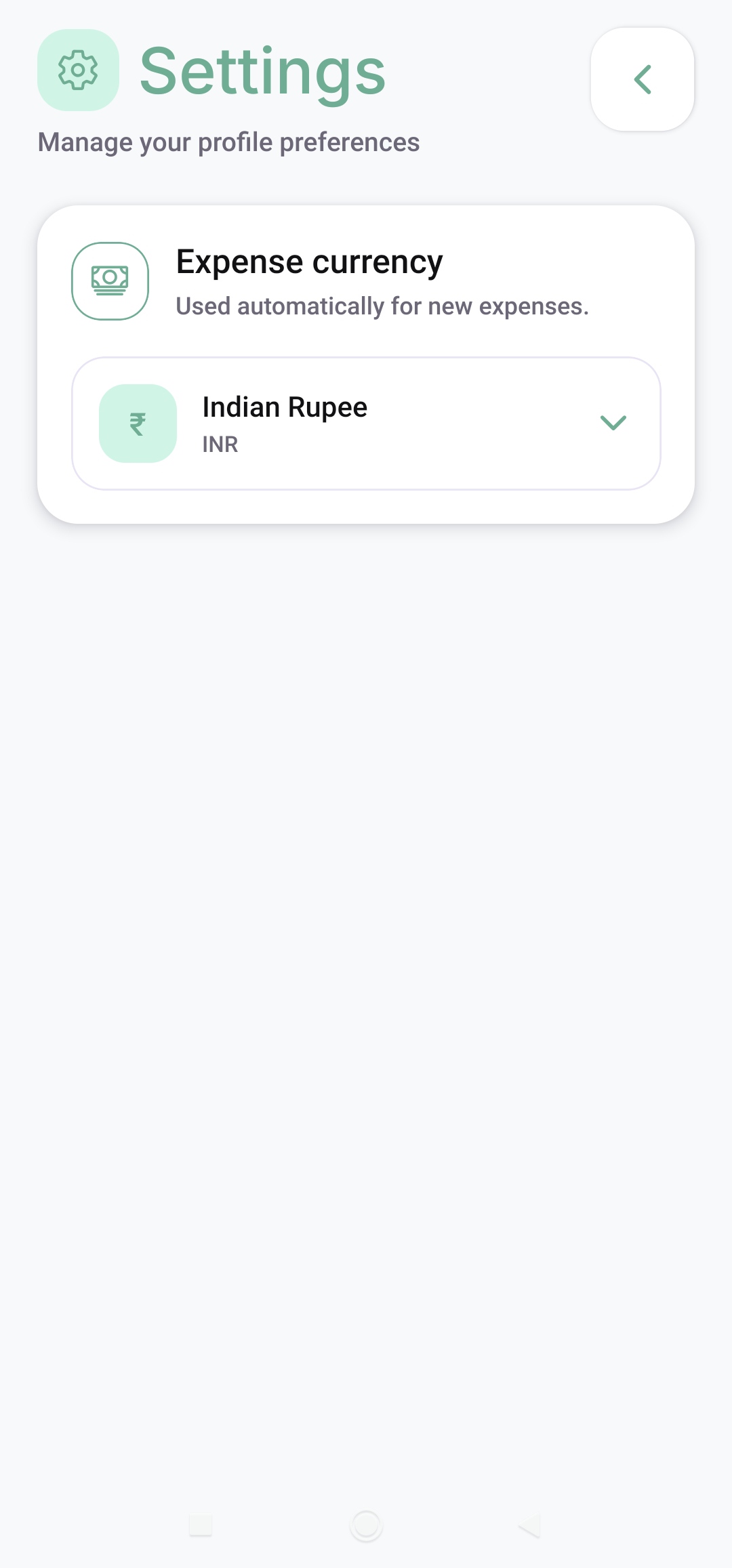
Choose the expense currency that Arc2Liv uses automatically when you create new expenses. The example shown uses Indian Rupee (INR).
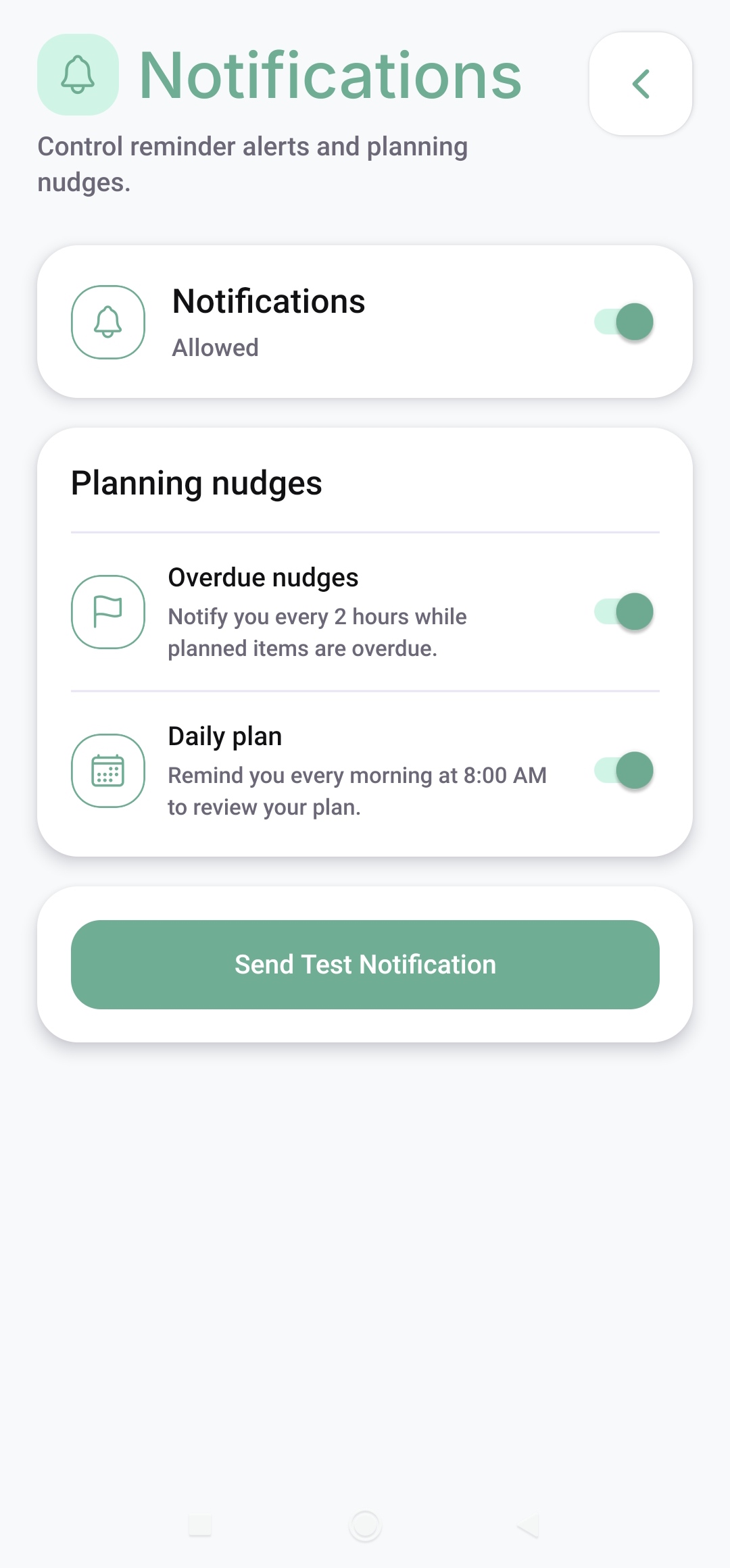
Control reminder alerts and planning nudges. Enable or disable overdue nudges and the morning daily-plan reminder, and send a test notification.
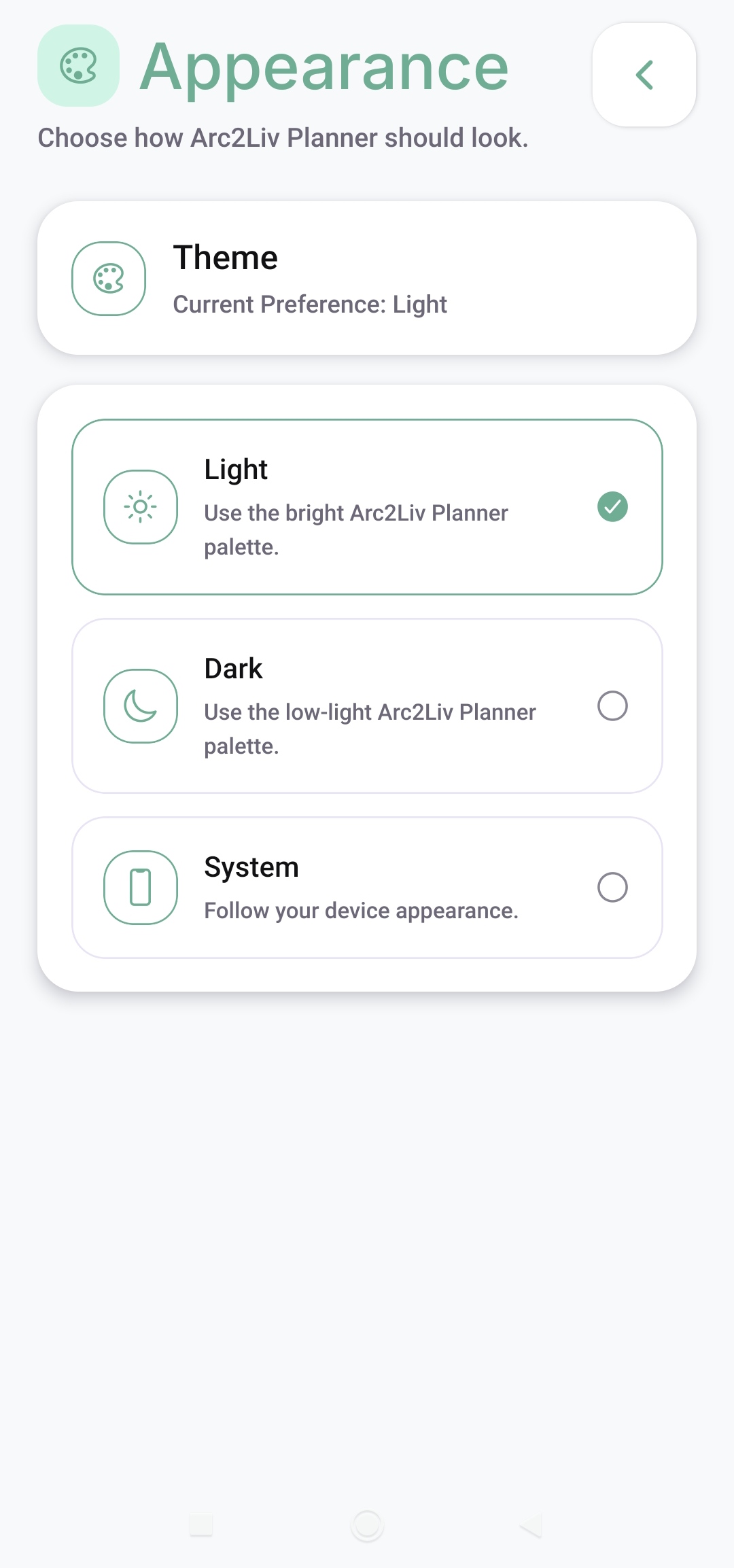
Choose the light or dark palette, or let Arc2Liv follow your device appearance with the System option.
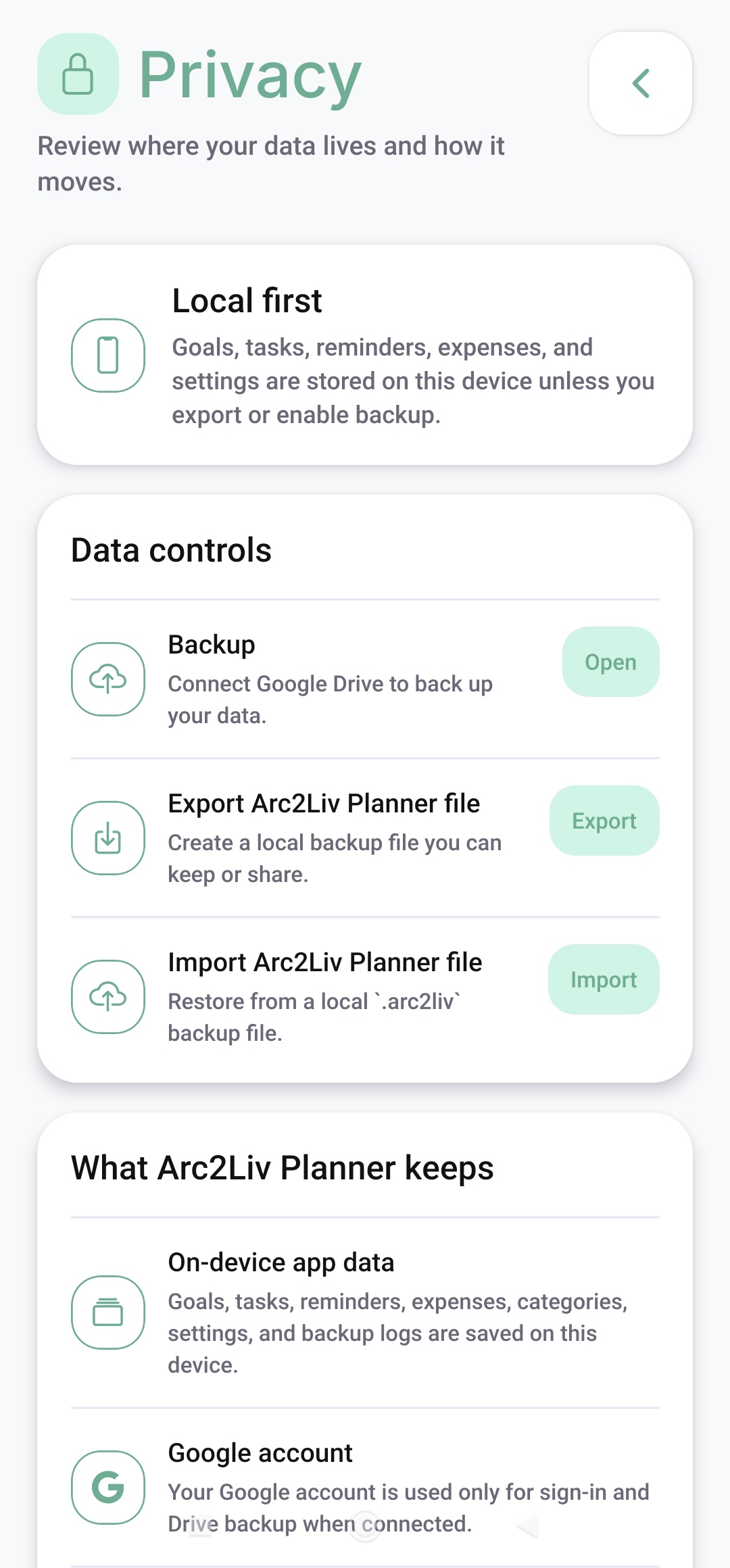
Review what is stored on your device and how Google sign-in and backup are used. Open backup controls, export a local planner file, or import a saved .arc2liv backup.
YOUR DATA, YOUR CHOICE
Goals, tasks, reminders, expenses, and preferences stay on your device unless you export them or enable backup. Use local import and export, or connect Google Drive for backup and restore.
Read our Privacy PolicyMAKE IT FEEL LIKE YOU
Choose light, dark, or system appearance. Set your expense currency and control reminders, daily planning nudges, and overdue alerts from your profile.
See the app screensINSIDE ARC2LIV
Explore all 28 app screens, from your first goal to your daily plan. Select any screenshot to view it at full size.

HERE TO HELP
Find help, report a problem, or learn how your data is handled.